📘 EduCam AI: The Complete User Guide
Welcome to EduCam AI, the premier AI-powered lesson planner built exclusively for the Cameroon National Syllabus (CBA). This guide covers every feature to ensure you get the absolute most out of the platform.
1. Introduction: What EduCam AI Does
EduCam AI automates the tedious process of writing Competency-Based Approach (CBA) lesson plans. You simply select your class, subject, and topic, and our AI instantly generates a fully compliant lesson plan, simplified chalkboard notes, and printable student worksheets. It's built to save Cameroonian teachers hours of prep time.
2. Creating an Account
To save your generated lessons and access all features, you need an account. Click the Join for Free button on the home page, enter your email and a secure password, and verify your account.
3. Logging In
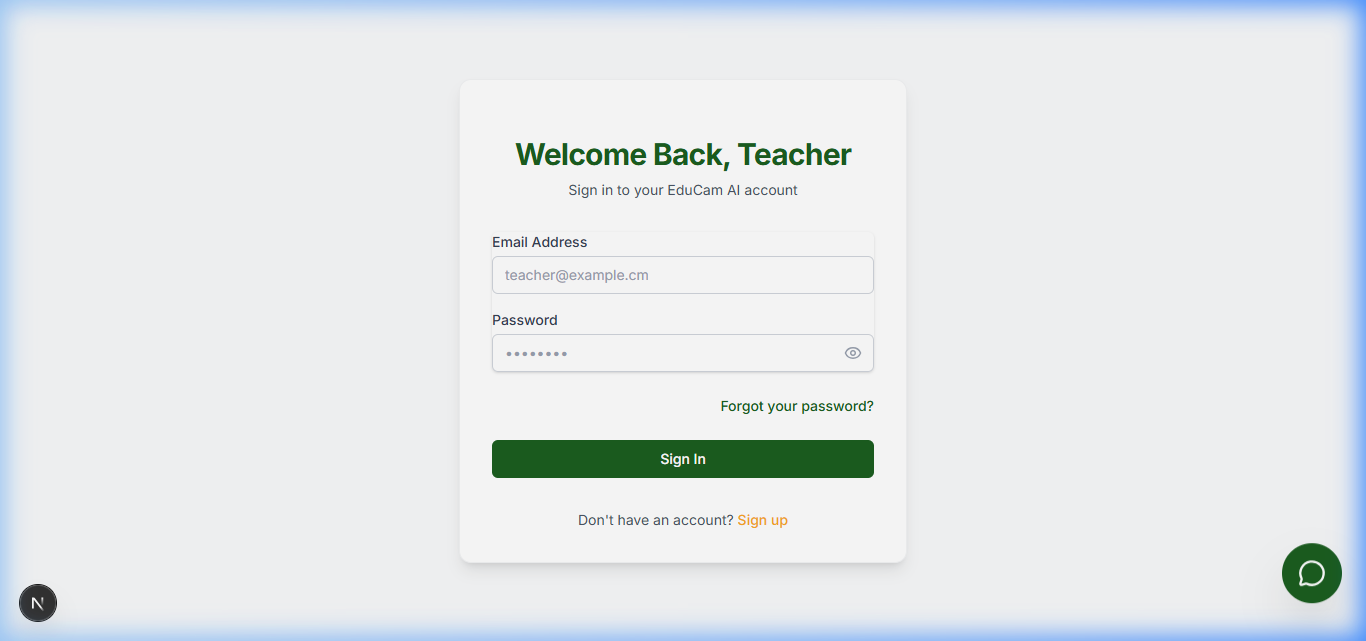
If you already have an account, click Sign In on the navigation bar. Enter your credentials to access your saved materials and the main dashboard.
4. Dashboard Overview
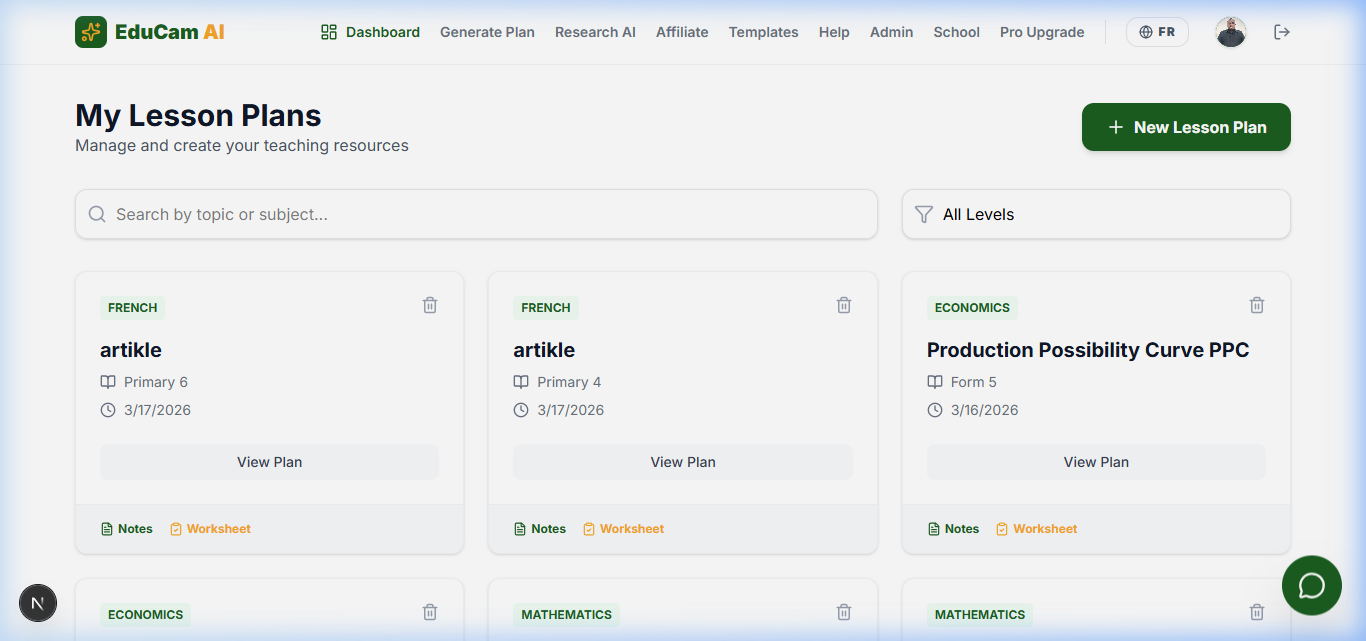
Your dashboard is your mission control. From here, you can view your recent lesson plans, quick-launch the generator, access the Exam Generator, and navigate to your account settings.
5. Creating Your First Lesson
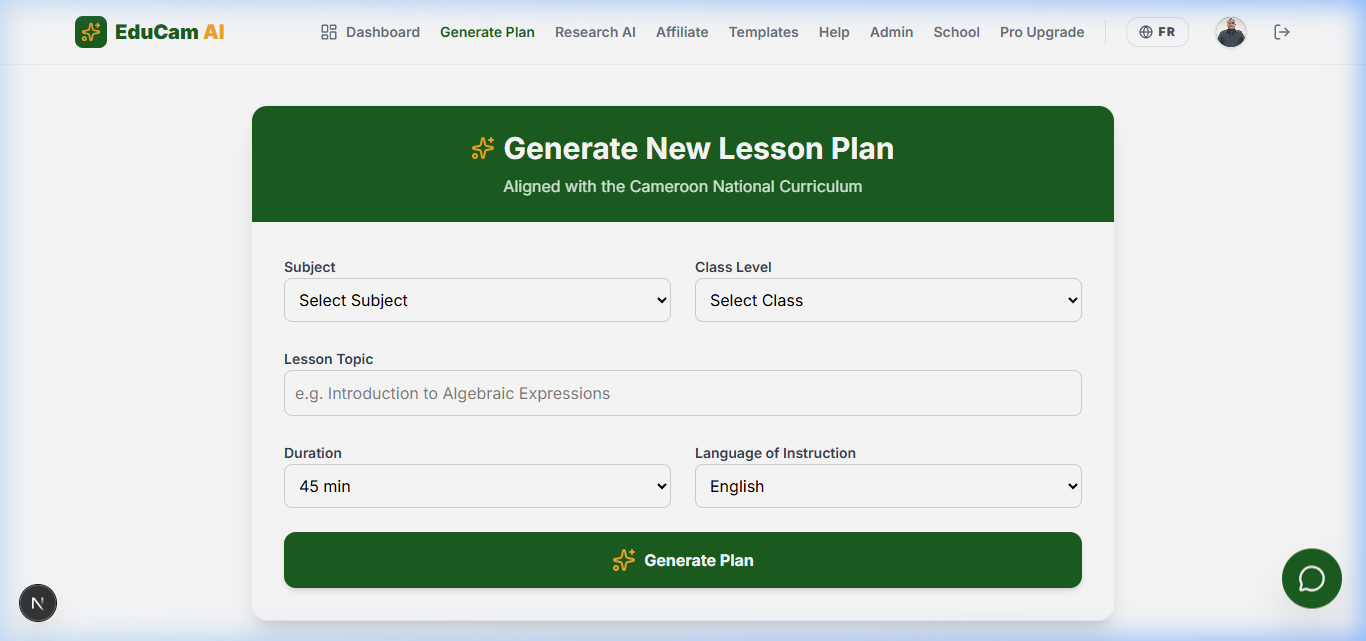
Navigate to the Lesson Plans tab. Select your section (Anglophone/Francophone), class level, subject, and enter the specific topic you are teaching. Click Generate and watch as the AI creates a full pedagogical plan with OPIs, Teaching Aids, and Stages.
6. Editing Lessons
AI gets it 95% right, but you are the expert! Once a lesson is generated, you can click into it to manually edit any section, tweak the timeline, or adjust the competencies to better fit your specific classroom reality.
7. Downloading Worksheets
Along with your lesson plan, EduCam AI generates a student worksheet containing exercises and assessment questions. You can view these directly alongside your lesson and download them for your class.
8. Exporting Lesson Plans
Once your plan is finalized, click the Export or Print button at the top banner of the lesson view. This will format the plan into a clean, printable A4 format that you can save as a PDF or send directly to the printer for administrative sign-off.
9. Free Plan Limits
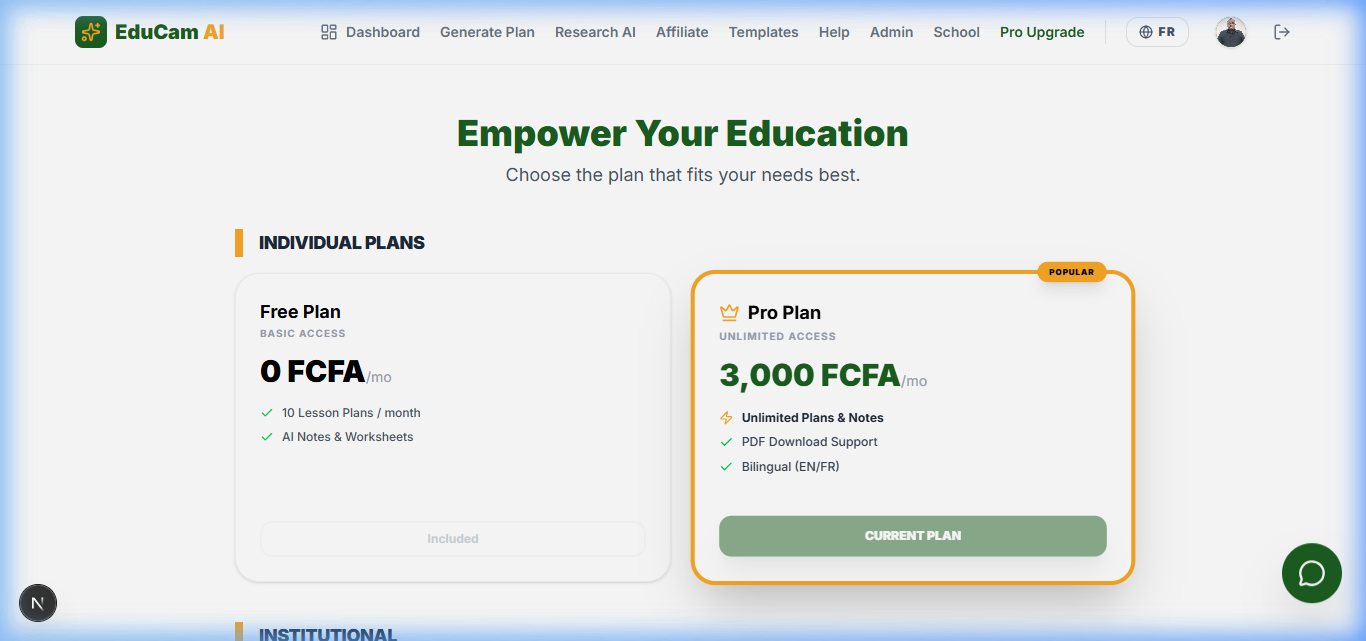
EduCam AI offers a Free tier allowing you to generate up to 10 free lesson plans per month and access basic AI Notes. Once you hit this limit, the system will prompt you to upgrade.
10. Upgrading to Pro
To unlock professional Exam Generation, full Marking Schemes, unlimited lesson plans, and School Logo branding, navigate to the Pricing page and select the Pro Plan explicitly built for individual teachers.
11. Paying with MoMo
We support instant payments via MTN Mobile Money and Orange Money. After clicking Upgrade, enter your phone number in the secure checkout modal, approve the PIN prompt on your phone, and your account will automatically activate instantly!
12. Account Management
Click your avatar in the top right corner to access Profile Settings. Here you can change your avatar, update your preferred language (English/French), and view your current subscription tier.
13. Admin Panel Guide
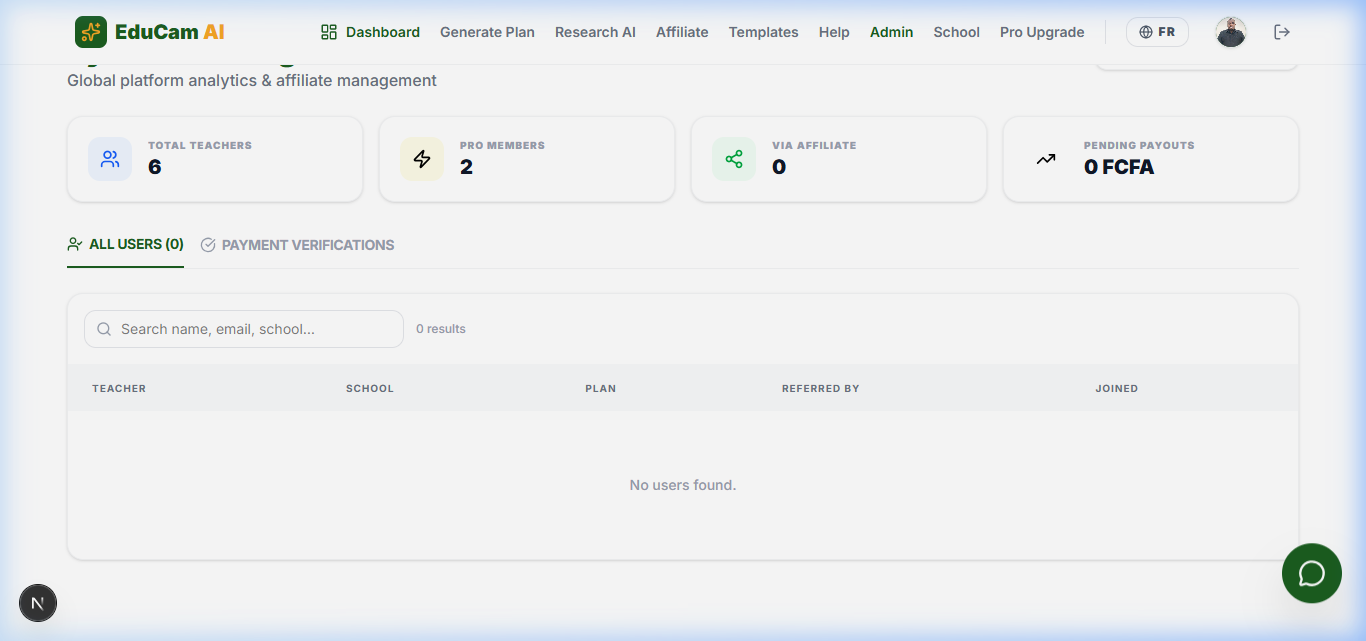
For platform owners, the Admin Console tracks overall system usage, revenue, and user growth. You can also view recent generations and manage broad system settings.
14. Troubleshooting
Hitting an error? Most issues can be resolved by refreshing the page or clearing your browser cache. If a generation fails midway, please check your internet connection and try generating it one more time.
15. Contact Support
If you need personal assistance, have billing queries, or want to discuss School Bulk Licensing, click the green WhatsApp widget floating on your screen or join the Community to connect directly with the team.